Print-Ready Checklist
Chitmunk's print-ready checklist makes professional printing predictable. Every card needs a 0.125 inch bleed (artwork extending past the cut line) and a 0.125 inch safe zone (no important text near the cut line). The built-in design validator scans for text outside the safe zone, low-resolution images, missing fonts, and bleed gaps before you export. Built-in presets for TheGameCrafter, DriveThruCards, and MakePlayingCards match each service's exact requirements. This guide explains bleed, safe zones, the validator, and which export format to pick for your print shop.
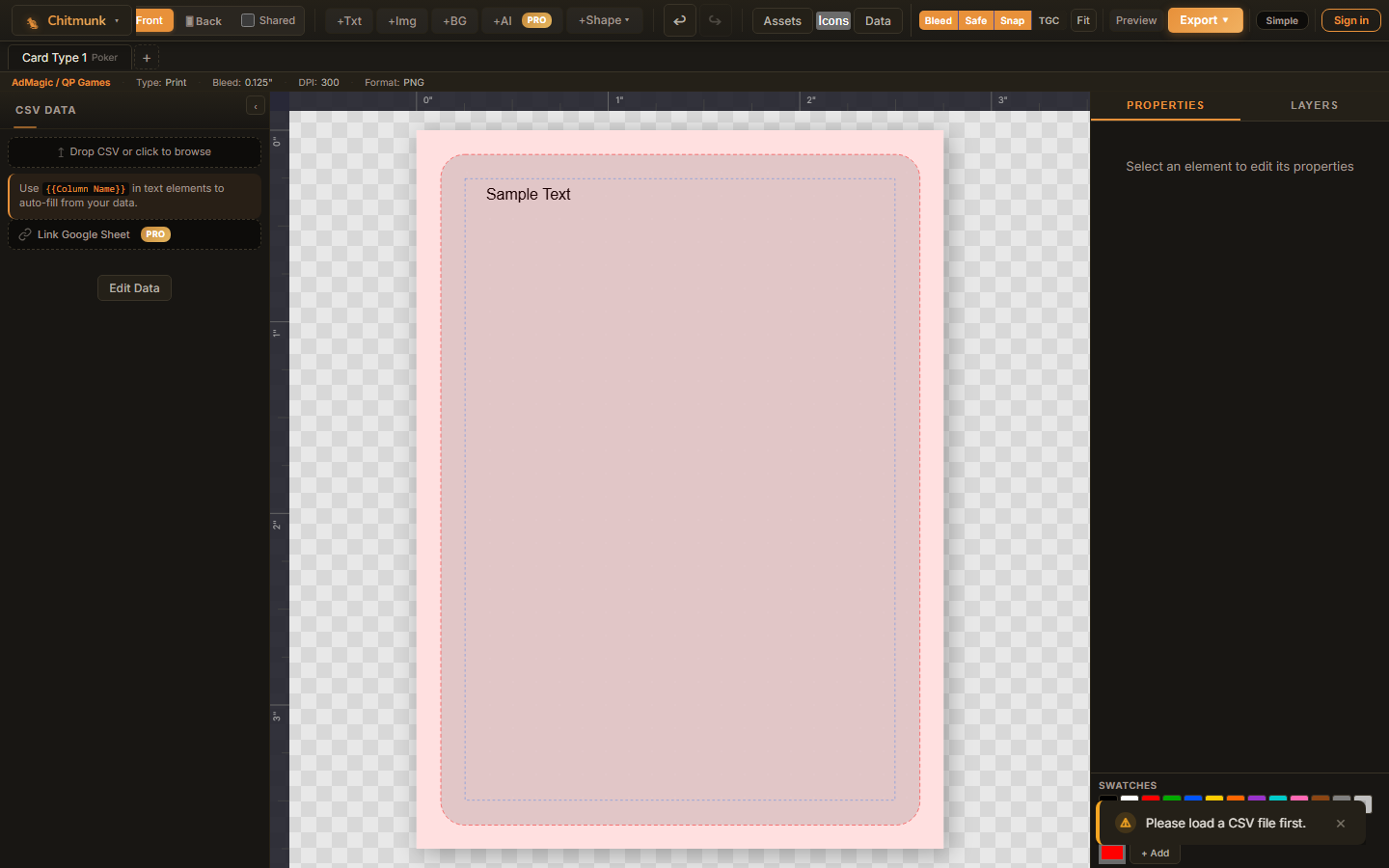 The export modal — choose format, resolution, and crop-mark options before downloading.
Understanding Bleed Zones
The bleed zone is a 0.125-inch (1/8") border around the outside of your card. This area exists because cutting machines are not perfectly precise; there is always a small amount of variation in where the cut lands.
Here is what you need to know:
- Extend backgrounds and art into the bleed. If your card has a colored background or a full-bleed image, it must extend all the way to the outer edge of the bleed zone. Otherwise, you may end up with thin white strips along the edges where the cut was slightly off.
- Do not put important content in the bleed. Anything in the bleed zone may be cut off. Keep text, icons, and critical artwork inside the safe zone.
- The bleed is part of your exported image. When you export for print, Chitmunk includes the bleed area. The print service uses it during the cutting process and then trims it away.
Toggle bleed zone visibility using the View dropdown in the toolbar. The bleed zone is shown as a shaded border around your card.
Understanding Safe Zones
The safe zone is the inner area of the card that is guaranteed to be visible after cutting. It is inset from the cut line by another 0.125 inches. All important content: text, logos, key artwork, should be placed within the safe zone.
Think of the three zones from outside to inside:
- Bleed zone (outer edge): Will be trimmed off. Fill with background color/art only.
- Trim zone (middle): The intended cut line. Content here is risky; it might be visible or might be cut.
- Safe zone (inner area): Everything here will definitely be visible on the final card.
Toggle safe zone visibility using the View dropdown in the toolbar.
Print Overlay
Use the View dropdown in the toolbar and enable TGC Template Overlay to toggle the print overlay. This shows the exact template outline for your selected component type, including cut lines and fold lines. It is a transparent layer that sits on top of your design so you can verify alignment.
You can adjust the overlay's opacity using the slider that appears in the properties panel when the overlay is enabled. This lets you see your design through the overlay without it being too distracting.
The print overlay appears as a locked layer at the top of the layers panel. It cannot be selected, moved, or deleted; it is purely a visual reference.
Running Validation
Chitmunk includes an automated validation tool that checks your design for common print problems. You can run it two ways:
- Export panel: Open the export options and run the validator from there. Validation issues include Go to buttons that select the problem element on the canvas.
- Automatic: Validation runs automatically when you start an export. If issues are found, you are warned before proceeding.
Common Validation Warnings
| Warning | What It Means | How to Fix It |
|---|---|---|
| Element outside bleed area | An element extends beyond the bleed zone and will be completely cut off. | Move or resize the element so it fits within the bleed area. |
| Text too close to edge | Text is in the bleed or trim zone and may be partially cut off. | Move the text element so it is fully inside the safe zone. |
| Missing image | An image element references a file that cannot be found (broken URL or deleted IndexedDB entry). | Re-upload the image or remove the element. |
| Very small text | Text is below a readable size for print (typically under 6pt). | Increase the font size or remove the element if it is not needed. |
Tip: Validation warnings do not prevent you from exporting. They are advisory, sometimes you intentionally want an element in the bleed zone (like a decorative border that bleeds off the edge). Use your judgment.
Export Formats
Chitmunk supports several export formats depending on your needs:
PNG Images (Recommended for Print Services)
The standard export format. Each card face is exported as a separate PNG file at 300 DPI: the standard resolution for professional printing. DPI (dots per inch) determines print quality. 300 DPI is the standard for professional printing; lower values like 150 DPI may appear fuzzy, while higher values offer diminishing returns. PNGs are bundled into a ZIP file for easy download.
- Includes the bleed zone in each image.
- Lossless quality: no compression artifacts.
- Compatible with virtually every print-on-demand service.
- If you have CSV data, every card variant is exported (one image per row).
PDF with Crop Marks
Note: PDF export, Tabletop Simulator spritesheets, and print-resolution (300 DPI) exports require a Rare subscription ($7.99/mo or $59.99/yr). Low-resolution (150 DPI) PNG, JPEG, and WebP exports are available to all Common (free) users.
For printers that accept PDF files or for proofing on paper. Chitmunk generates a multi-page PDF with each card on its own page.
PDF export options include:
- Page size: Letter (8.5" x 11") or A4 (210mm x 297mm).
- Crop marks: Short lines printed at each corner showing where to cut. These are the standard marks professional printers expect.
- Margins: Space between the card and the page edge. Adjustable in the export settings.
Other Formats
- JPEG: Smaller file sizes than PNG but with slight quality loss. Useful for sharing previews but not recommended for final print.
- WebP: Modern format with excellent compression. Good for web sharing but check that your print service accepts it.
- Tabletop Simulator spritesheet: A special single-image grid format for use in Tabletop Simulator. All cards are combined into one large image that TTS can split into individual cards.
Export Settings
Open the export options from the Game Home dashboard. Here you can configure:
- Format: PNG, JPEG, WebP, or PDF.
- Quality: For JPEG and WebP, adjust the compression quality (higher = larger file, better quality).
- Scope: Export only the current card type tab or all card types in the project. Exporting all types bundles everything into a single ZIP with folders for each card type.
Recommended Workflow
Follow this workflow to go from design to print-ready files:
- Design your cards. Use templates, CSV data merge, and AI generation as needed.
- Enable bleed and safe zone overlays (via the View dropdown) to verify your layout respects the margins.
- Toggle the TGC template overlay (via the View dropdown) to double-check alignment with the component template.
- Run validation from the export panel and fix any warnings. Use the Go to buttons to jump directly to problem elements.
- Browse all card variants using the bottom navigator bar to spot any data or layout issues.
- Export as PNG at 300 DPI for your print service, or PDF with crop marks for proofing.
- Review the exported files before uploading to your print service. Open a few images at full resolution to check for any issues the validator may have missed.
Print Service Tips
- Check the service's requirements. Different print-on-demand services have specific file format, resolution, and bleed requirements. Chitmunk's 300 DPI PNG export with bleed meets the requirements of most major services.
- Order a proof. Before placing a large order, order a single proof copy to check colors, readability, and cut accuracy in person.
- Colors may shift. Screen colors (RGB) and print colors (CMYK) do not always match perfectly. Vibrant neons and very saturated colors may look different in print. If color accuracy is critical, consult your print service's color guidelines.
- Dark backgrounds near edges are forgiving. If your card has a dark border, small cutting inaccuracies are nearly invisible. Light or white backgrounds near the edge make misalignment more obvious.
Tip: Save your project before exporting. While Chitmunk autosaves frequently, an explicit save ensures you have a recoverable snapshot of the exact design you exported.