Parametric Generators
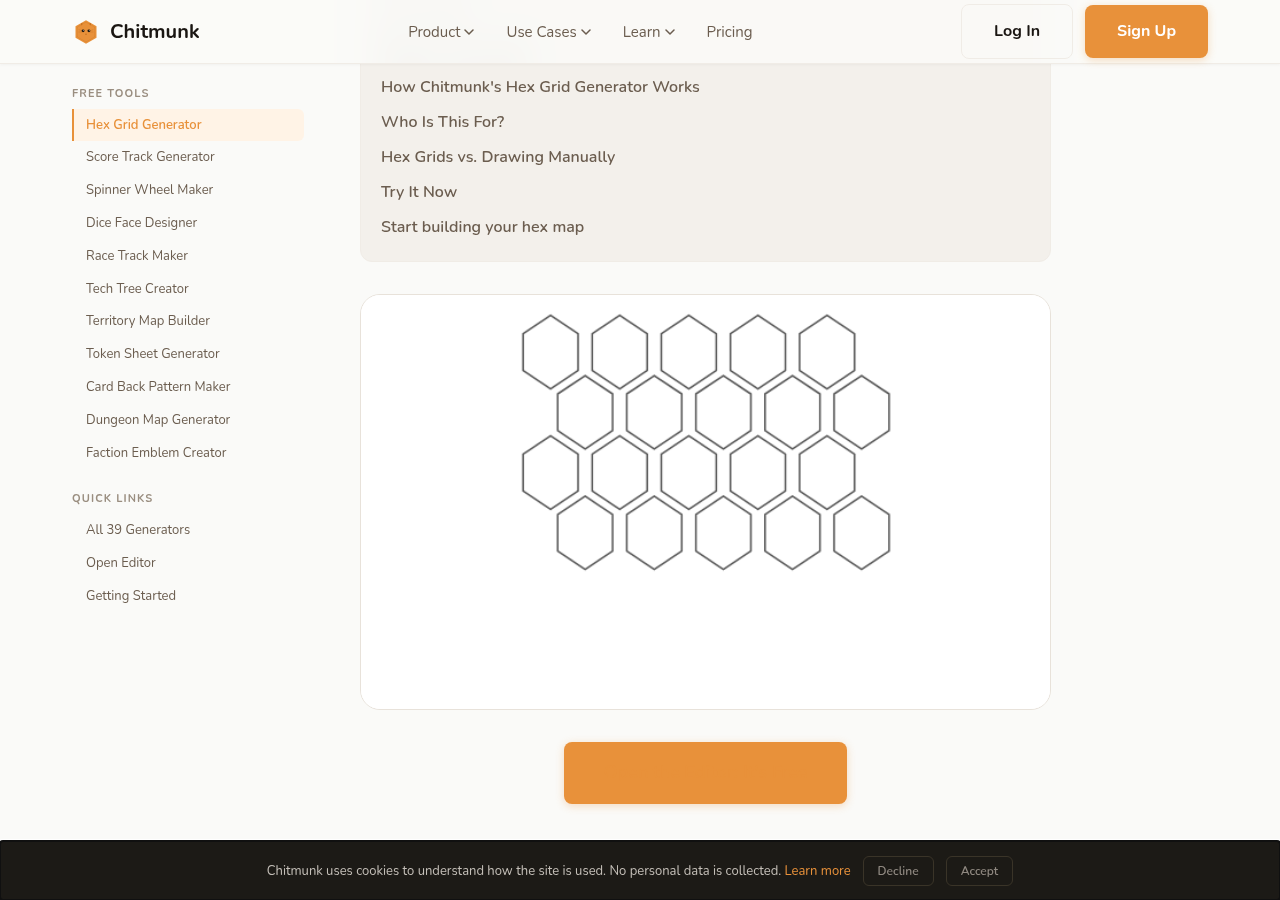 A generator (here: hex grid) — adjust parameters on the left, see the result update in real time.
What Are Generators?
Chitmunk's parametric generators are pre-built game components you can drop on the canvas and configure: 39 types covering hex grids, tracks, spinners, stat blocks, tech trees, territory maps, and dice. Every parameter (rows, columns, colors, labels, connections) is editable in a configuration modal, and the most common settings are exposed in the properties panel for quick tweaks. Spatial generators like tech trees and maps have interactive editors where you drag nodes and set connections live. This guide covers picking a generator, configuring it, and when to convert it to editable shapes.
Generators are different from shapes. Shapes are static geometric paths: a rectangle, a star, a shield. Generators produce rich, composite visuals built from many internal parts, all driven by the settings you provide. A single Score Track generator, for example, produces numbered cells, color fills, directional arrows, and layout logic that would take dozens of individual shapes to recreate manually.
Chitmunk includes 39 generator types organized into categories: Grids, Tracks, Widgets, Card Parts, Layout, Reference, Maps & Diagrams, and Game Mechanics. All generators are available to all users. Each generator has a full font picker, so you can use any Google Font or custom uploaded font in generator labels and text.
Adding a Generator
To add a generator to your card, click the Generate button in the tool strip (left edge of the canvas). This opens a categorized modal. You can also press Ctrl+K to open the Command Palette and search for any generator by name.
The palette shows rendered previews of every generator type, so you can see what each one looks like before adding it. Click a generator to add it to the canvas with default settings. A configuration modal opens immediately so you can adjust every parameter right away.
The Configuration Modal
Every generator has a configuration modal with type-specific settings. When you add a generator or double-click an existing one on the canvas, the modal opens.
Key features of the modal:
- Live preview: a preview at the top of the modal updates in real time as you change settings, so you can see exactly what the generator will look like before committing.
- Type-specific controls: each generator has its own set of parameters. A Hex Grid has options for grid dimensions, orientation, and terrain colors. A Spinner Wheel has segment count, labels, and donut mode. The controls adapt to the generator type.
- Apply & Cancel: click Apply to save your settings and update the generator on the canvas. Click Cancel to discard changes and close the modal.
To reopen the modal for a generator that is already on the canvas, double-click the generator element.
Quick-Edit Properties
When a generator is selected on the canvas, the properties panel shows key settings for fast tweaks without opening the full configuration modal. These quick-edit controls typically include colors, sizes, and the most commonly adjusted parameters for that generator type.
For full access to every setting, click the Edit Settings... button in the properties panel. This opens the complete configuration modal.
Tip: Use quick-edit for color and size adjustments while iterating on your card layout. Open the full modal when you need to change structural parameters like grid dimensions, track layout, or segment count.
Generator Types
Here are the core generators with rendered previews. All are available to every user. Additional generators (QR Code, Dice Roll Chart, Miniature Base, Faction Emblem, Component Slots, Card Back Pattern, Weather Overlay, World Map, Chord Diagram, and more) are also available in the full categorized menu.
Hex Grid
Hex maps with terrain colors
Square Grid
Rectangular grids with alternating colors
Score Track
Linear, snake, spiral, or perimeter
Race Track
Custom paths with interactive editor
Spinner Wheel
Custom segments with radial text
Dice Face
D4–D20 pips, numbers, or icons
Resource Pips
Multi-resource cost displays
Stat Display
Badges, bars, or radar charts
Card Frame
TCG-style title/art/text zones
Player Mat
Configurable zone layouts
Progress Bar
Segmented HP/mana bars
Bracket
1–6 round elimination brackets
Ruler
Configurable measurement guides
Probability Table
Die-type roll result tables
Pie Chart
Data visualization with donut mode
Compass Rose
Compass rose with scale bar
Relationship Map
Node-and-edge faction diagrams
Point-to-Point
City networks with route segments
Tech Tree
Branching prerequisite trees
Thermometer
Temperature/tension gauges
Box Insert
Compartment layout diagrams
Action Rondel
Circular action selection wheels
Phase Reference
Turn structure with phases
Timeline
Event sequences with markers
Token Sheet
Punchout layouts with cut guides
Interactive Editors
Three generator types include canvas-based interactive editors that let you build their layouts visually:
- Race Track: click to add control points along the track path, drag to reposition them, and right-click to delete. Six preset buttons provide starting track layouts you can customize.
- Point-to-Point Map: click to place cities on the map, drag to reposition them, double-click to rename a city, and right-click to remove one. Add routes between cities in the Routes list below the canvas (enter each city's ID for From/To, plus length and color).
- Tech Tree: click to add technology nodes, drag to reposition them, double-click to rename a node, and right-click to delete. Add prerequisite arrows in the Prerequisites list below the canvas (enter each node's ID for From/To). Preset buttons provide starting tier layouts.
The interactive editors appear inside the configuration modal. Changes are reflected in the live preview as you work, and your layout is saved when you click Apply.
Convert to Shapes
If you need pixel-perfect control over a generator's individual parts, you can flatten it into editable basic shapes. Right-click any generator on the canvas and select Convert to Shapes.
This converts the generator into a group of individual shape, text, and line elements that you can edit independently: adjust colors, move parts, delete pieces, or add new elements.
Warning: Converting to shapes is a one-way operation. Once converted, the generator becomes a standard group and can no longer be reconfigured through the generator modal. If you think you might want to adjust the generator settings later, duplicate the generator first and convert only the copy.
Tips
- Use generators for repetitive geometry: Grids, tracks, spinners, and bracket layouts involve dozens of precisely positioned parts. A generator produces them in seconds. Doing the same with individual shapes would take much longer and be harder to keep consistent.
- Convert to shapes for fine-tuning: When a generator gets you 90% of the way there but you need to adjust specific elements: move one cell, recolor one segment, resize one label, convert to shapes and edit the pieces directly.
- Preview before you add: The visual palette shows rendered thumbnails of every generator. Browse the palette to see what is available and find the right generator for your design.
- Generators behave like any element: Once placed on the canvas, generators can be moved, resized, rotated, and layered just like text, images, and shapes. Use the properties panel for position, size, opacity, and blend mode.
- Double-click to reconfigure: Forgot a setting or want to change the layout? Double-click the generator to reopen its modal. Your existing configuration is preserved, just adjust what you need and click Apply.
- Combine generators with other elements: Layer a Score Track over a card background, place text labels next to a Stat Display, or position a Compass Rose in the corner of a Point-to-Point Map. Generators work alongside every other element type.